
In results-driven marketing in 2026, you don’t always need to pay thousands of euros in licenses to get scientific rigor. Often, the agility a marketing department needs lies in a well-structured spreadsheet. In this guide, we introduce our Significance Calculator in Excel: a free, downloadable tool designed to validate your A/B tests, Ads campaigns and conversion experiments with professional precision.
While SaaS platforms offer visual dashboards, Excel gives you full ownership of your data and the flexibility to integrate the calculations into your own internal reports. Below, we explain how to download it, use it and interpret its key metrics.
Table of Contents
- 1. Download the Significance Calculator (2026 Edition)
- 2. User Guide: From raw data to validation
- 3. How to interpret the spreadsheet results
- 4. Why Excel is still the CRO specialist’s best ally
- 5. Frequently Asked Questions about the Downloadable Calculator
- 6. Conclusion: Integrating Excel into your workflow
1. Download the Significance Calculator in Excel (2026 Edition)
We designed this tool to be lightweight, functional and, above all, transparent. Unlike online calculators that work as a “black box,” our Excel template leaves all the statistical formulas in plain sight so you can understand the why behind every result.
📥 Download A/B Calculator (Excel)
Access the free template and start validating your experiments today.
This 2026 version includes protection against data entry errors and is compatible with Microsoft Excel, Google Sheets and Numbers.
2. User Guide: From raw data to validation
Using the calculator is extremely simple.
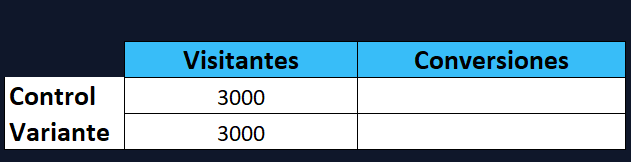
Step 1: Set up your samples
Enter in the marked cells the total number of users (Visitors) who went through your control version and your variant.
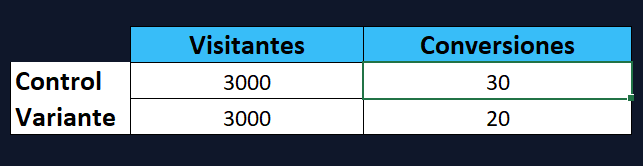
Step 2: Record the conversions
Enter how many of those visits completed the goal action (purchase, subscription, click). Excel will automatically calculate the Conversion Rate (CR) of each group.
3. How to interpret the spreadsheet results
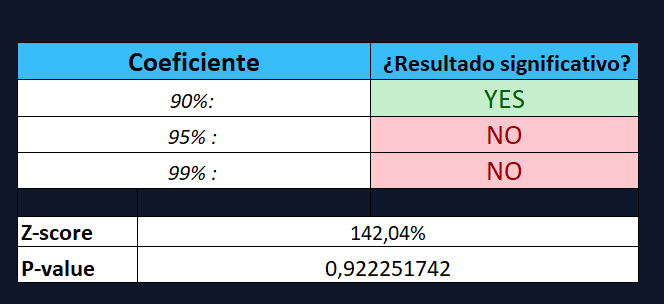
Unlike other basic templates, our calculator breaks down the validity of the experiment through three fundamental technical metrics and three levels of statistical rigor. Here is how you should read the data the Excel generates:
A. The Certainty Indicators (Z-score and P-value)
At the bottom of the calculator you’ll find two values that mathematically validate the test:
- Z-score: Measures how many standard deviations your result is from the mean. A high value indicates that the difference between Control and Variant is solid.
- P-value: The probability that the result is due to chance. If this value is close to 0, confidence in the test is at its maximum.
B. Significant result? (Confidence Levels)
The calculator automatically evaluates your experiment under three different thresholds so you can decide how much risk you want to take:
Quick indicator for minor changes or low-traffic tests where you need an early signal.
The gold standard. If the Excel shows “YES” at this level, you can apply the change with professional certainty.
Maximum rigor. Reserved for critical changes in checkout or pricing where the margin of error must be almost nonexistent.
C. Conversion Limit Ratios (From/To)
The Significance Calculator in Excel also shows you the Confidence Intervals. You won’t just see a fixed percentage, but the range (minimum and maximum) within which your true conversion rate will move in the future. This helps you anticipate the best and worst-case scenarios after implementing the change.
4. Why Excel is still the CRO specialist’s best ally
Despite the rise of tools like Adobe Target or VWO, a downloadable calculator offers strategic advantages that cloud software sometimes overlooks:
A. Privacy and Security
Your data never leaves your computer. For sectors like banking or healthcare, where privacy is critical, a local Excel is the safest option.
B. Formula Auditing
You can see exactly how the standard error and the confidence interval are calculated. This is vital for analysts who need to justify their decisions to a technical committee.
C. Zero Cost and No Limits
No monthly fees or traffic limits. You can run 1 or 1,000 calculations a day without affecting your department’s budget.
5. Frequently Asked Questions about the Downloadable Calculator
Is the Excel as accurate as a paid tool?
Absolutely. The mathematics behind statistical significance (normal or Bayesian distribution) are universal. Our calculator uses the same statistical functions as the Optimizely or VWO engines.
Can I use this Excel for multivariate testing (MVT)?
This template is optimized for A/B tests (1 variant against a control). For complex multivariate tests with element interaction, use another of our online tools
Does it work in Google Sheets?
Yes, you can upload the .xlsx file to your Google Drive and it will work perfectly without losing any calculation functionality.
6. Conclusion: Integrating Excel into your workflow
Our Statistical Significance Calculator in Excel isn’t meant to replace the big experimentation platforms, but to complement them. It’s the perfect tool for quick validations, last-minute reports and teams that value the transparency of their data.
The next step after validating your data is to document the learnings. An Excel doesn’t just give you a number, it gives you the evidence needed to build a solid experimentation culture in your company.
Start measuring with rigor today
Don’t leave your website’s success to chance. Download our tool, enter your data and make decisions based on science, not intuition. At Ideario Digital, our mission is to democratize access to high-end tools for all professionals in the industry.
If you found it useful, don’t forget to share this resource with other marketing specialists!